
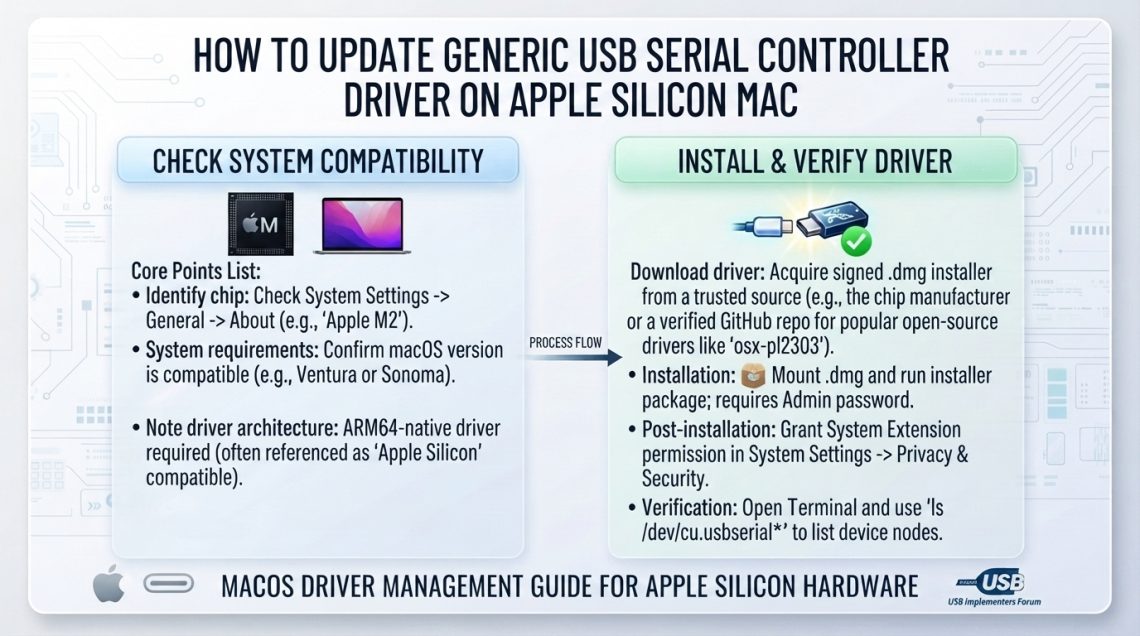
Assembling an efficient engineering, development, or network administration workspace is an empowering upgrade. Whether you are flash-programming IoT controller nodes in San Francisco, configuring enterprise network infrastructure across high-capacity network switches in New York City, compiling custom firmware for automated embedded arrays in Seattle, Washington, or debugging edge computing hardware configurations in Austin, Texas, your USB-to-serial connection is a critical component of your pipeline.
However, moving from an Intel-based Mac or a Windows environment to an Apple Silicon Mac (M1, M2, M3, M4, or Pro/Max variants) often brings hardware communication to a sudden halt. You plug in your USB-to-serial adapter, fire up a terminal emulator like Minicom or Serial, and find that the device is completely unrecognized. Instead of an active connection, you are met with a generic error or a missing device node path (/dev/tty.*).
When a generic USB serial controller driver fails on Apple Silicon macOS, it is rarely due to broken wires or physical USB-C port failure. The problem lies in microarchitectural execution differences, the complete deprecation of legacy Kernel Extensions (.kext) in modern macOS, and the strict requirement for native ARM64 Driver Extensions (.dext) running safely inside user space. Websites like yournewdriver.com highlight that understanding how modern macOS architecture handles these bridge controllers is key to keeping your local serial terminal active.
This guide explores why legacy serial drivers break on Apple Silicon, compares the common generic bridge chips found in modern hardware, and provides a clear, step-by-step update process to restore your connection.
1. The Core Obstacle: Legacy Kernel Extensions vs. Modern DriverKit
The main reason generic USB serial adapters fail on Apple Silicon Macs comes down to a fundamental shift in how macOS interacts with hardware drivers.
LEGACY KERNEL EXTENSION PATHWAY (Deprecated & Blocked):
[ Legacy Serial Driver (.kext) ] ──► [ System Kernel Space Access ] ──► [ BLOCKED BY APPLE SILICON ]
                                                                                │
                                     ┌──────────────────────────────────────────┴──────────────────────────────────────────┐
                                     ▼                                                                                     ▼
                       [ High Kernel Panic Risk ]                                                            [ Boot Security Degradation ]
               Legacy x86_64 code translation layer crashes                                           Requires dropping system integrity protection
               the OS when memory access calls fail.                                                  levels via Startup Recovery Utilities.

---------------------------------------------------------------------------------------------------------------------------------------------

MODERN DRIVERKIT EXTENSION PATHWAY (Native ARM64 Baseline):
[ Modern Serial Driver (.dext) ] ──► [ macOS DriverKit Sandbox ] ──► [ User Space Execution Platform ] ──► [ Clean /dev/tty.* Channel Creation ]
The Deprecation of Legacy Kernel Extensions (.kext)
Historically, hardware manufacturers built drivers as Kernel Extensions (.kext). These drivers executed code inside the most sensitive layer of the operating system—the kernel. If a legacy serial driver encountered a memory allocation error or an unhandled hardware state, it could easily trigger a severe system crash or a Blue Screen equivalent (a kernel panic) on your Mac.
Starting with macOS Catalina and moving fully into modern releases on Apple Silicon, Apple deprecated kernel extensions in favor of DriverKit. Modern drivers are built as Driver Extensions (.dext). These extensions run strictly within User Space—a secure sandbox isolated from the core operating system kernel. If a DriverKit serial driver crashes, your connection drops, but the rest of your system remains completely unaffected.
The Problem with Rosetta 2 Translation for Hardware
Many legacy serial utilities rely on x86_64 instruction logic built for Intel processors. While Apple’s Rosetta 2 translation layer handles standard desktop apps well, it cannot translate hardware drivers that require direct communication with physical device ports. If a serial chip manufacturer hasn’t recompiled their driver code into a native ARM64 binary, the driver cannot load on Apple Silicon.
Furthermore, many generic USB-to-serial adapters use counterfeit or clone chips that try to mimic reputable brands. While these clones might work on older operating systems, the strict data verification used by Apple Silicon and modern DriverKit extensions will immediately reject them.
2. Chipset Capability Matrix: USB-to-Serial Architecture on Mac
Most generic USB serial controllers rely on one of four common bridge chipsets. Identifying the specific silicon inside your adapter tells you exactly how macOS will handle the connection:
| Bridge Chipset Family | Common Hardware Applications | Native Apple Silicon Integration Status | Primary Driver Framework Required | Device Path Designation in Terminal (/dev/) |
| WCH CH340 / CH341 | Found on low-cost Arduino clones, ESP32 breakout boards, and generic serial cables. | High compatibility on modern macOS releases via built-in system drivers. | Native Apple User Space Driver Framework. | /dev/tty.wchusbserial* |
| Silicon Labs CP210x | Widely used in professional engineering equipment, high-end microcontrollers, and IoT devices. | Fully supported on Apple Silicon via dedicated manufacturer updates. | Silicon Labs Driver Extension (.dext). | /dev/tty.SLAB_USBtoUART |
| FTDI (FT232R / FT232H) | Used in industrial control systems, automotive diagnostics, and premium networking gear. | High compatibility via long-standing built-in macOS native support. | Built-in Native macOS AppleUSBFTDI engine. | /dev/tty.usbserial-* |
| Prolific PL2303 | Found in standard consumer USB-to-DB9 adapter cables and older serial electronics. | Requires user manual approval through specialized App Store extensions. | Prolific App Store Driver Extension. | /dev/tty.usbserial* or /dev/tty.P* |
3. Step-by-Step Recovery and Driver Update Sequence
If your USB-to-serial adapter isn’t communicating with your Mac, use this step-by-step guide to identify the chip, clear away old drivers, and initialize a modern connection.
1.Identify the Underlying Controller Chipset via System Report:Time: 3 mins | Difficulty: Low.
Connect your generic USB-to-serial adapter directly to your Mac Mini, Mac Studio, or MacBook Pro. Click the Apple Menu in the top-left corner, hold down the Option key, and select System Information. Scroll down the left sidebar, click USB, and look for your adapter under the USB Device Tree. Note down the listed Vendor ID and Product ID to pinpoint the internal chipset manufacturer.
2.Purge Old Kernel Extensions and Legacy Driver Fragments:Time: 5 mins | Difficulty: Medium.
Open your Mac’s Terminal app. Check for lingering legacy drivers by running the command kextstat | grep -i serial. If you find old third-party extensions active in system memory, navigate to /Library/Extensions/ and delete those old .kext folders. This step ensures older Intel-era software blocks won’t conflict with your new DriverKit setup.
3.Download and Deploy the Native ARM64 Driver Extension:Time: 5 mins | Difficulty: Medium.
Visit the official portal for your identified chipset (such as the Silicon Labs or WCH download pages) and grab the modern macOS installer package. Open the downloaded .dmg image file and launch the package installer. For modern systems like Prolific controllers, download the dedicated extension application straight from the secure Apple Mac App Store.
4.Grant Security Approvals in the macOS Settings Framework:Time: 3 mins | Difficulty: Low.
Open System Settings and navigate to Privacy & Security. Scroll down to the security section to find an alert stating a driver extension from your manufacturer was blocked from loading. Click the Allow button, verify your choice using your Mac’s administrative password, unplug your serial adapter from the USB port, and plug it back in to register the new interface node.
4. Verifying the Connection via the Terminal Console
Once you have installed the new driver and granted the necessary security permissions, verify that the communication path is open by using the built-in macOS terminal console.
Bash
# List all active call-up serial interface paths currently mapped in the system
ls -l /dev/cu.*

# Typical healthy console response showing active driver mappings:
# crw-rw-rw-  1 root  wheel  0x9000004 Jul 20 18:00 /dev/cu.bluetooth-incoming-port
# crw-rw-rw-  1 root  wheel  0x9000006 Jul 20 18:01 /dev/cu.wchusbserial1410
# crw-rw-rw-  1 root  wheel  0x9000008 Jul 20 18:01 /dev/cu.SLAB_USBtoUART
Open your Terminal window and execute the following command to check for active serial call-up devices:
Bash
ls /dev/cu.*
If your driver is working properly, you will see a device path that matches your chipset family, such as /dev/cu.wchusbserial1410 or /dev/cu.SLAB_USBtoUART.
To connect to a device (such as a network switch or an Arduino console running at a 115200 baud rate), enter the following command:
Bash
screen /dev/cu.wchusbserial1410 115200
To terminate an active screen connection session and close the port later, press Ctrl + A, followed immediately by the K key, and confirm by typing Y.
5. Regional Workflow Impact and Enterprise Configurations
Configuring USB-to-serial drivers can introduce unique challenges depending on your specific work environment and layout requirements.
Professional Media Production and Testing (California & Texas Hubs)
In development spaces across San Francisco or hardware validation labs in Austin, engineering teams often connect multiple serial adapters to a single Mac using a multi-port USB hub or dock.
- The Challenge: High-speed USB microcontrollers generate dense data packets that can quickly saturate the bandwidth of poorly shielded USB-C hubs. This saturation leads to random data dropouts or causes the macOS driver sandbox to abruptly disconnect the terminal session.
- The Fix: Connect your serial adapters using a high-quality, independently powered Thunderbolt 4 Hub or a certified USB 3.2 Gen 2 type-C cable. Keeping the communication path clean reduces electrical noise and prevents data transmission errors under heavy workloads.
Enterprise Network Infrastructures (New York & Seattle Workspaces)
IT infrastructure managers across Manhattan corporate headquarters or cloud engineering hubs in Seattle routinely use serial connections to configure physical network routers and firewalls.
- The Challenge: Corporate security policies often block user accounts from modifying local system configuration settings, which prevents users from manually approving new driver extensions in the Privacy & Security panel.
- The Fix: Systems engineers should pre-approve the specific developer Team IDs for trusted serial chipsets (such as FTDI or Silicon Labs) across their fleet of Macs using a centralized Mobile Device Management (MDM) profile. This automated rollout allows technicians to plug in their tools and connect instantly without needing administrative access.
6. Proactive Tips for Long-Term Serial Connection Stability
To ensure your USB-to-serial adapters continue to connect reliably and survive future macOS updates, implement these technical best practices:
- Use Direct
/dev/cu.*Paths Instead of/dev/tty.*Mappings: When connecting to a device, always choose the Call-Up (cu) path instead of the Teletype (tty) path. Thecuinterface link handles serial communication without waiting for an active carrier-detect signal from the hardware, preventing your terminal app from hanging. - Block Legacy Driver Overwrites from Older Installers: Avoid running outdated
.pkginstallers designed for older Intel-based Macs. These packages often place obsolete components into your system folders, which can disrupt modern DriverKit extensions and cause connection issues. - Use Dedicated Terminal Emulators with Built-in Drivers: Consider using advanced terminal apps like Serial from the Mac App Store. These tools include built-in, user-space drivers for most common USB serial chipsets, allowing you to connect securely without needing to install separate system-wide drivers.
- Label Your Physical Adapters by Chipset Family: Use a label maker to note the internal chipset (like CH340, FTDI, or CP210x) directly on the plastic housing of your adapters. Knowing exactly what chip is inside each cable makes it much easier to select the right troubleshooting steps if a connection ever fails.
7. Frequently Asked Questions (FAQ)
1. Why does my generic USB serial adapter work on an Intel Mac but fail on an Apple Silicon Mac?
Intel-based Macs can run older, 32-bit and 64-bit kernel extensions using legacy system calls. Apple Silicon processors use a modern ARM64 design that completely blocks these outdated execution paths, meaning adapters will fail until they are updated with native ARM64 DriverKit extensions.
2. Can I damage my Mac’s operating system by installing the wrong serial driver package?
No. Modern macOS releases protect core system components by keeping them on a separate, cryptographically locked read-only volume. If you install an incompatible driver, it will simply fail to load or get blocked in user space without affecting the stability of your system.
3. What should I do if the “Allow” button does not appear in Privacy & Security settings?
The macOS system security prompt is time-sensitive and will disappear if it isn’t approved within 30 minutes of running the installer. If the prompt is missing, unplug your adapter, run the driver installer package again, and open the Privacy & Security panel immediately to approve the extension.
4. Why does my serial terminal show garbled text or unreadable characters?
Garbled text means there is a mismatch between the communication speeds (baud rate) configured on your Mac and the connected device. Check your device’s manual to find its expected speed (common defaults are 9600 or 115200), and update your terminal app settings to match.
5. Can I use a standard USB-C to USB-A adapter to connect an older serial cable?
Yes. Simple mechanical adapters do not alter the digital signal flowing through the cable. As long as you have the correct driver for the main serial bridge chip inside the cable, passing the connection through a basic USB-C adapter will work perfectly.
6. Is it safe to lower system security levels in Recovery Mode to force-load a driver?
We highly advise against it. Lowering your Mac’s security settings to allow legacy kernel extensions bypasses key security protections built into Apple Silicon. It is much safer to update your hardware to an adapter that uses modern, sandboxed DriverKit extensions.
7. Why does my terminal software state the serial port is “already in use”?
This error happens when a previous terminal session didn’t close properly, leaving the port locked by the operating system. You can clear the lock by unplugging the USB cable to force macOS to reset the connection path, or by using the kill command in Terminal to close the orphaned process.
8. Do genuine FTDI serial chips require manual driver downloads on Apple Silicon?
No. Apple includes native, pre-installed driver support for genuine FTDI chips directly inside macOS. When you plug in a genuine FTDI device, the system recognizes it automatically and maps it to a /dev/cu.usbserial-* path without requiring manual configuration.
9. How do I fix an “Operation not permitted” error when accessing a serial port in Terminal?
This error means your terminal application lacks the file system permissions needed to access raw hardware device links. To fix this, open System Settings > Privacy & Security > Full Disk Access, and toggle the switch to grant permission to your terminal app.
10. How can I confirm that an old serial driver extension has been completely removed?
Open a new Terminal window and run the command systemextensionsctl list. This tool displays all active user-space driver extensions, allowing you to easily verify whether old software fragments have been successfully removed from your system.
Conclusion
Updating a generic USB-to-serial controller driver on an Apple Silicon Mac requires adapting to the modern, secure architecture of macOS. By moving away from legacy kernel extensions and adopting native, sandboxed DriverKit extensions, you can avoid system latency and ensure rock-solid stability. Identifying your specific adapter chipset, removing old driver fragments, and granting the correct security permissions will keep your terminal sessions active and reliable.


