
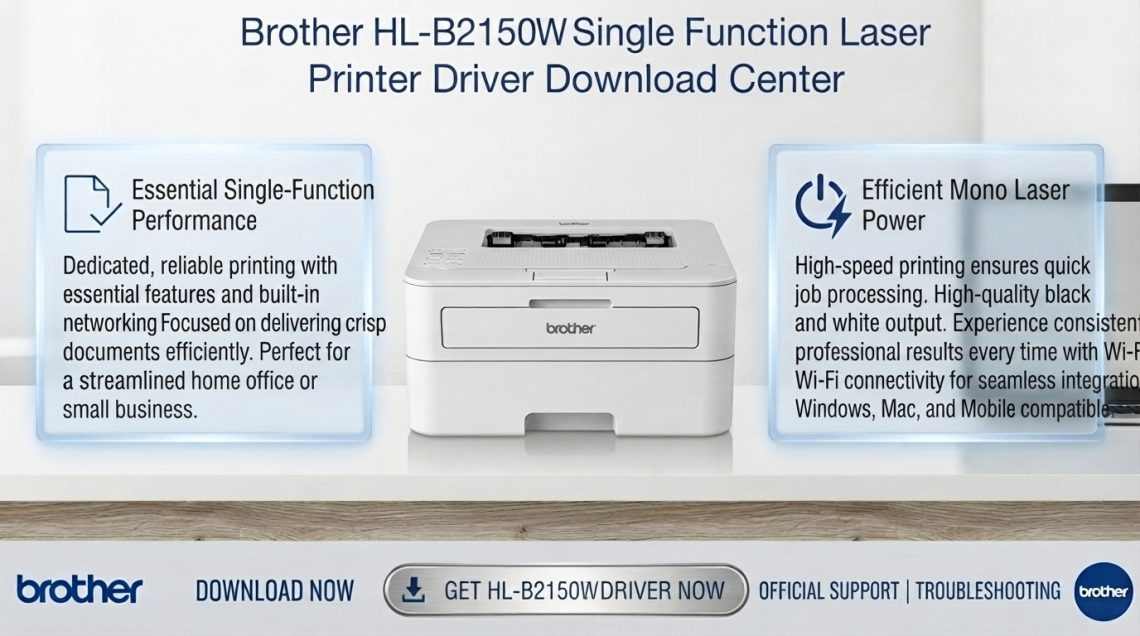
The Brother HL-B2150W is an advanced single-function monochrome laser printer tailored for heavy document workflows in modern connected home offices, shared workspaces, and small enterprise environments. Building upon core single-function laser design, this specific variant incorporates multi-device network connectivity options, allowing seamless team integration alongside its rapid print speeds.
To leverage the machine’s robust feature set—including high-speed wireless setups, automated network routing, dual-sided printing, and energy preservation schedules—installing the correct, official software driver package is vital to unlock peak hardware performance.
______________________________
DOWNLOAD >>
______________________________
Technical Performance & Infrastructure Matrix
The HL-B2150W matches powerful internal processing memory with versatile hardware mechanics:
| Operational Category | Performance Metric | Technical Detail |
| Print Speed (Single-Sided) | Up to 34 ppm (A4) / 36 ppm (Letter) | Rapid deployment for high-volume document queues |
| Print Speed (Double-Sided) | Up to 16 ipm (A4) / 17 ipm (Letter) | Integrated Auto-Duplex running 8 to 8.5 sheets per minute |
| Maximum Resolution | $1200 \times 1200$ DPI | Razor-sharp fine lines and highly legible corporate text |
| First-Page-Out Velocity | Under 8.5 Seconds | Minimal lag time when recovering from an idle state at 23 °C |
| Data Interface Array | USB, Wi-Fi, and wired LAN (Ethernet) | Full network deployment flexibility for single or multiple users |
| Internal Processing Memory | 128 MB | Buffers high-density PDFs and graphics without system slowdowns |
| Status Interface Panel | 16 characters $\times$ 1 line | Clear LCD readout for real-time hardware status updates |
Comprehensive Paper Management & Media Scaling
The internal mechanical paper path handles massive print jobs effortlessly while expanding media options:
- Expansive Input Storage: The main internal paper drawer stores up to 250 sheets of standard 80 $g/m^2$ plain copy paper, shielding the paper from dust and saving user intervention time.
- Organized Output Stacking: The integrated face-down delivery tray accommodates up to 150 sheets of printed 80 $g/m^2$ paper, keeping large multi-page reports in chronological order.
- Media Density Thresholds: The drive rollers safely transport heavy paper stocks ranging from 60 to 163 $g/m^2$.
- Extensive Layout Profiling: The driver easily adjusts to fit a massive range of sizing variables: A4, Letter, B5 (JIS/ISO), A5 (including Long Edge), B6, A6, Executive, Legal, Folio, 16K ($195 \times 270$ mm), A4 Short, and global configurations like Mexico Legal, India Legal.
Eco-Power Allocation Schemes
Through the driver utility dashboard, you can monitor the hardware’s automatic power-stepping framework, engineered to throttle power down aggressively during downtime:
- Active Laser Printing Peak: Approximately 470 Watts (at 25 °C)
- Eco-Print Stabilization: Approximately 270 Watts (at 25 °C)
- Ready / Standby Status: Approximately 43 Watts (at 25 °C)
- Standard Sleep State: Drops to roughly 3.8 Watts
- Deep Sleep Preservation: Draws a microscopic 0.5 Watts by turning off network lines while saving your configuration
- Chassis Power Off: Drastically cuts consumption down to 0.08 Watts
Step-by-Step Sequence: Configuring Your Network and Driver Setup
To ensure your computer correctly maps the network addresses over Wi-Fi or LAN without data packet collision, deploy your installation using this precise order:
1.Download the Complete Network & Driver Suite:Acquire Software.
Navigate to the official Brother global support repository. Download the Full Driver & Software Package tailored to your specific OS version (Windows or macOS) rather than generic text-only drivers.
2.Unpack Components and Set Up Initial Network Line:Prepare Hardware.
Strip all orange protective transport materials from the inner toner and drum cavities. Load the paper drawer, plug in your power line, and if using a wired network, snap your Ethernet/LAN cable into the back of the device.
3.Execute the Installer Application on Your Computer:Initialize Setup.
Launch the setup file. When the wizard prompts you to select your interface type, select either Wireless Network Connection (Wi-Fi) or Wired Network Connection (Ethernet/LAN) based on your office environment.
4.Authenticate Network Nodes and Run a Validation Test:Finalize Sync.
Let the installer scan your local network space to locate the printer’s specific IP profile. Once paired, follow the on-screen steps to close the setup wizard and print a diagnostic test page to confirm communication.
Frequently Asked Questions (FAQ)
1. What makes the HL-B2150W different from previous single-function models?
The defining upgrade is its integrated triple-interface array. Unlike USB-only units, the “W” designation means it includes onboard Wi-Fi and physical LAN connectivity, opening up mobile app printing capabilities.
2. Can multiple users print to this machine at the same time?
Yes. When configured over a local Wi-Fi router or wired network switcher using the network driver framework, any authorized user on the same subnet can queue print jobs to the device seamlessly.
3. How does Deep Sleep mode impact printing over Wi-Fi?
When the printer slips into Deep Sleep (0.5W), it remains low-power until a new print job hits the network queue. The network card detects the incoming packet, waking the fuser element up automatically within seconds.
4. Can I print directly from my phone or tablet?
Yes. Thanks to its wireless connectivity architecture, you can print from mobile devices using compatible wireless protocols, such as the Brother Mobile Connect app, AirPrint, or Mopria.
5. Why should I use the face-down delivery tray option?
Delivering pages face-down ensures that multi-page documents remain perfectly sorted from page one to the end, preventing you from having to manually resort the stack after printing.
6. What should I do if my computer cannot find the printer over Wi-Fi?
Verify that both your PC and the HL-B2150W are connected to the exact same network band (e.g., matching the same router SSID name). You can also run the Network Connection Repair Tool included in the full software suite.
7. Does the automatic two-sided printing feature support standard Legal paper?
Yes. The duplex mechanical pathways are adjustable and fully support automatic two-sided printing on standard regional paper sizes including Letter, A4, and Legal formats.
8. Is the internal 128 MB RAM memory upgradable?
No. The 128 MB memory buffer is hard-soldered onto the system’s motherboard, which is more than enough to handle complex text processing and intense business print cycles throughout the hardware’s lifespan.
9. How do I switch between using a USB connection and a Wi-Fi connection?
To change your data connection pathway, simply re-run the official Brother installation package on your computer and select the alternative communication port wizard option.
10. Can this machine handle heavy labels and custom cardstocks?
Yes, but they must be fed single-sided through the manual feed slot, and you should select the “Thick Paper” or “Labels” profile in your driver settings to slow down the fuser speed for optimal bonding.
Conclusion
The Brother HL-B2150W is an exceptional asset for busy office spaces, delivering impressive speeds up to 34–36 pages per minute alongside automated duplex capabilities and high-fidelity 1200 DPI clarity. Its comprehensive connectivity matrix—featuring USB, Wi-Fi, and LAN alternatives—ensures easy integration into any workflow setup. By keeping your network software up to date and leveraging its built-in energy management states, you can enjoy fast, crisp black-and-white performance while keeping operating expenses down.


